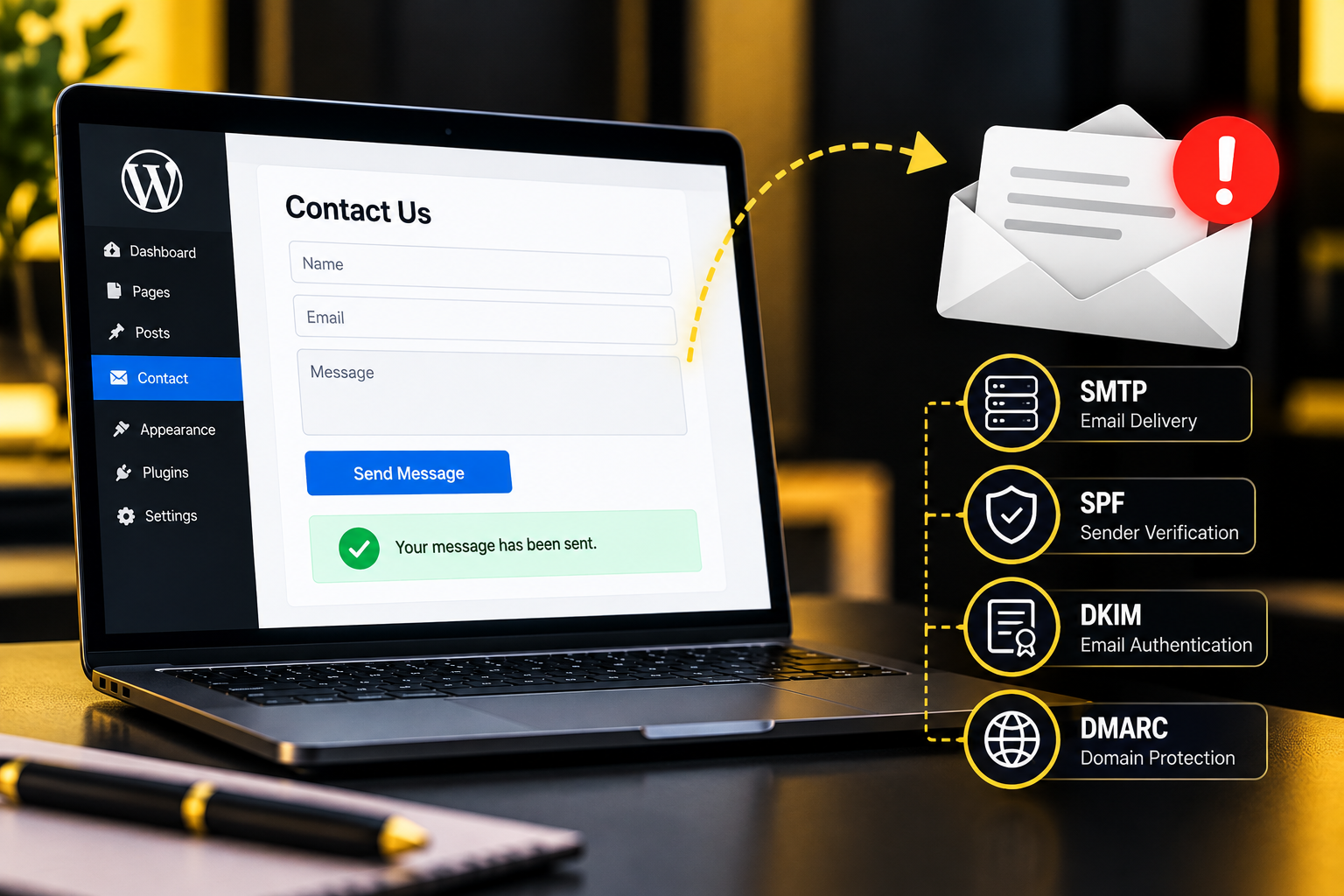
Your WordPress contact form looks perfectly normal. Visitors can enter their details, click Submit and even receive a confirmation message saying their enquiry has been sent.
But there’s one problem.
Nothing arrives in your inbox.
For a business website, this is more than a minor technical inconvenience. If potential customers are completing your contact form but you’re not receiving their messages, you could be missing valuable enquiries without realising anything is wrong.
It’s also a surprisingly common WordPress problem.
Whether you’re using Contact Form 7, WPForms, Formidable Forms or another contact form plugin, email delivery problems can happen for several reasons. Sometimes the issue is a simple notification setting. Other times, it involves your hosting server, SMTP configuration or domain email authentication.
The good news is that most WordPress contact form email problems can be diagnosed systematically.
In this guide, we’ll explain seven common reasons why WordPress contact forms stop sending emails, how to identify the problem and what you can do to fix it.
Why Is My WordPress Contact Form Not Sending Emails?
Before troubleshooting, it’s important to understand how WordPress contact form notifications work.
When someone completes a form on your website, several things typically happen:
- The visitor enters their information and submits the form.
- The form plugin validates and processes the submission.
- The plugin asks WordPress to generate an email notification.
- WordPress passes the message to the configured email-sending system.
- The sending service attempts to deliver the message to your email provider.
- Your email provider accepts, filters, rejects or delivers the message.
A problem at any stage can prevent the notification from reaching your inbox.
Here’s the important distinction: A successful form submission does not necessarily mean the notification email was delivered.
WordPress may successfully hand an email to the sending system without knowing whether the recipient ultimately received it.
That’s why checking only the confirmation message on your website isn’t enough.
Let’s look at the most common causes.
1. Your Contact Form Isn’t Actually Submitting Successfully
The first thing to establish is whether the problem involves the form itself or the email notification.
These are two different issues.
If a visitor clicks Submit and nothing happens, or an error message appears, the form may not be processing submissions correctly.
Common symptoms include:
- The Submit button appears unresponsive.
- The form continues loading without displaying a result.
- A validation error appears even when the fields are completed correctly.
- A security or spam protection error prevents submission.
- The form works for administrators but fails for other visitors.
- The page displays an error after submission.
How to fix it
Step 1: Test the form in a private browser window.
Open your website in an Incognito or Private browsing window, complete the form and submit it.
This helps identify problems that may only affect visitors who aren’t logged into WordPress.
Step 2: Check whether the submission was recorded.
If your form plugin supports entry storage, check whether a new submission appears in its entries section.
For example, WPForms and Formidable Forms provide entry management features, although availability can depend on the plugin version and configuration.
Contact Form 7 does not store submissions in the WordPress database by default. A compatible entry-storage solution can be added if required.
Step 3: Check for browser errors.
If the form doesn’t respond correctly, open your browser’s developer tools and inspect the Console and Network panels while submitting a test entry.
JavaScript errors, failed requests or blocked API calls can help identify what is going wrong.
Step 4: Review spam protection settings.
Incorrectly configured CAPTCHA, anti-spam tools or firewall rules may prevent legitimate submissions.
If the form is failing before the submission is processed, changing your SMTP settings alone won’t resolve the problem.
2. Your Form Notification Settings Are Incorrect
One of the simplest explanations is that the form is working, but its notification settings are incorrect.
Most WordPress form plugins allow you to choose who receives an email when someone submits a form.
If the recipient address is wrong, notifications are disabled or conditional rules are misconfigured, the expected email may never be generated.
Common notification mistakes
- An outdated recipient email address.
- A spelling mistake in the destination address.
- Notifications accidentally disabled.
- Incorrectly configured conditional notification rules.
- A default administrator email address that nobody monitors.
- An incorrect field reference or mail-tag.
How to fix Contact Form 7 notifications
If you’re using Contact Form 7:
- Open your WordPress dashboard.
- Go to Contact → Contact Forms.
- Select the affected form.
- Open the Mail tab.
- Review the To, From, Subject and Message body fields.
Make sure the To field contains the email address where you want to receive enquiries.
Also check that the mail-tags used in your message match the fields in the form.
For example, if your email field uses the tag [your-email], the corresponding mail-tag must reference that field correctly.
How to fix WPForms notifications
For WPForms:
- Go to WPForms → All Forms.
- Edit the affected form.
- Open Settings → Notifications.
- Confirm that notifications are enabled.
- Check the Send To Email Address field.
- Review any conditional notification settings.
Save your changes and submit another test enquiry.
How to fix Formidable Forms notifications
For Formidable Forms:
- Open Formidable → Forms.
- Select the relevant form.
- Navigate to Settings → Actions & Notifications.
- Open the email notification action.
- Verify the recipient address, sender information and notification trigger.
If you have multiple email actions, check that the correct action is configured to run when a new entry is created.
Big Boot Media Tip: Don’t assume the WordPress administrator email address is the same inbox your business uses for customer enquiries. Always verify the actual notification recipient.
3. You’re Using the Wrong Sender Email Address
This is one of the most frequently overlooked WordPress email problems.
Suppose your website is:
yourbusiness.com.au
But your contact form is configured to send notifications from:
customer@gmail.com
or dynamically uses the email address entered by the person completing the form.
That may appear convenient because you want to reply directly to the customer.
However, it can create email authentication problems.
Your website’s email server generally isn’t authorised to send messages pretending to originate from someone else’s Gmail, Outlook or business domain.
Receiving email providers may treat these messages as suspicious and reject or filter them.
How to fix it
Use a sender email address associated with your own verified domain.
For example:
From: Website Enquiries notifications@yourbusiness.com.au
To: enquiries@yourbusiness.com.au
Reply-To: The email address submitted by the visitor
This keeps the sending identity associated with your website while allowing your team to reply to the person who completed the form.
Contact Form 7 example
In the Mail tab, your configuration might look like:
To: enquiries@yourbusiness.com.au
From: Website Enquiries notifications@yourbusiness.com.au
Subject: New Website Enquiry
Additional headers: Reply-To: [your-email]
The [your-email] mail-tag must match the actual email field in your form.
Also ensure the sender address is permitted by your configured email service. Depending on the provider, it may need to exist as a mailbox, alias or verified sending identity.
Important: Changing the From address to match your domain is helpful, but it doesn’t replace proper email authentication or a correctly configured sending service.
4. WordPress Is Using an Unreliable or Incorrectly Configured Email-Sending Method
By default, WordPress uses a function called wp_mail() to prepare and send emails.
In a standard configuration, this commonly relies on the hosting server’s PHP mail system.
The problem is that not every hosting environment is configured to send email reliably through this method.
Some hosting providers restrict outgoing email. Others may allow messages to leave the server, but those messages may struggle to pass receiving providers’ authentication and reputation checks.
This can affect:
- Contact form notifications.
- WooCommerce order emails.
- Password reset messages.
- Website administrator notifications.
- Membership and account emails.
How to fix it: Configure authenticated email delivery
One of the most effective approaches is to configure WordPress to use an authenticated SMTP service or a supported transactional email API.
SMTP stands for Simple Mail Transfer Protocol.
Rather than relying entirely on the hosting server’s default mail configuration, your website can send messages through an authorised email provider.
Step-by-step SMTP setup
Step 1: Choose an email delivery solution
Depending on your requirements, you may use a compatible service such as:
- Google Workspace
- Microsoft 365
- Brevo
- Mailgun
- SendGrid
- Amazon SES
Different providers offer different authentication methods, pricing and sending limits.
Step 2: Install a suitable WordPress SMTP plugin
Popular options include WP Mail SMTP and Post SMTP.
Choose a maintained plugin that supports your selected email provider.
Step 3: Connect your email provider
Follow the plugin’s setup process to configure the mailer.
Where supported, OAuth or API-based authentication may be preferable to storing a regular mailbox password.
Step 4: Configure your sender details
Enter the verified sender address and sender name required by your provider.
Step 5: Send a test email
Use the plugin’s email testing feature to confirm that WordPress can communicate with the sending service.
Step 6: Test the contact form itself
A successful SMTP test doesn’t automatically confirm that your form notification settings are correct.
Submit a real test entry through the website and confirm that the notification arrives.
An important mistake to avoid
Simply installing an SMTP plugin isn’t enough.
You must actually configure it to use an appropriate SMTP server or supported email API.
If the plugin is still using the default PHP mail method, the underlying delivery problem may remain.
5. Your SPF, DKIM or DMARC Records Are Missing or Incorrect
Even with a correctly configured SMTP service, your website emails can still be rejected or marked as spam if your domain’s email authentication isn’t set up properly.
Three important technologies are involved:
SPF: Sender Policy Framework
SPF helps receiving servers determine which email servers are authorised to send messages for a domain.
For example, if your website uses an external transactional email provider, your SPF configuration may need to authorise that provider.
An incorrect SPF record can cause legitimate messages to fail authentication.
DKIM: DomainKeys Identified Mail
DKIM uses a cryptographic signature to help receiving servers verify that an email was authorised by the signing domain and wasn’t altered in transit.
Your email provider will usually supply the DNS records needed to configure DKIM.
DMARC: Domain-based Message Authentication, Reporting and Conformance
DMARC builds on SPF and DKIM.
It checks whether the authenticated sending domain aligns with the domain shown in the email’s From address and allows domain owners to specify how authentication failures should be handled.
DMARC can also provide reporting that helps identify authentication problems and possible domain impersonation.
How to fix email authentication problems
Start by identifying which service is actually sending your WordPress emails.
Then:
- Sign in to the DNS management area for your domain.
- Review your existing SPF, DKIM and DMARC records.
- Compare them with your email provider’s current setup instructions.
- Add or correct the required records.
- Allow time for DNS changes to propagate.
- Test email authentication and delivery again.
Be careful when editing SPF records. A domain should not have multiple separate SPF TXT records. If you use several authorised sending services, they generally need to be accounted for within one valid SPF policy.
Likewise, avoid immediately applying an aggressive DMARC rejection policy without understanding which legitimate services send email on behalf of your domain.
Big Boot Media Tip: If your website uses one provider for business email and another for WordPress notifications, both services may need to be considered in your email authentication setup.
Correct SPF, DKIM and DMARC settings can improve trust and deliverability, but they don’t guarantee that every email will reach the inbox.
6. Your Emails Are Being Blocked, Filtered or Sent to Spam
Sometimes the WordPress contact form is functioning correctly.
The notification is generated, the sending service accepts it and the email leaves your website.
But you still don’t see it.
In this situation, the problem may be on the receiving side.
Email providers use filtering systems to protect users from spam, phishing and unwanted messages.
Occasionally, legitimate WordPress notifications can be caught by those filters.
Common symptoms
- Notifications appear in the spam folder.
- Emails arrive at Gmail but not Microsoft 365.
- Some enquiries arrive while others disappear.
- Messages are delivered to a quarantine area.
- Email forwarding rules prevent messages from reaching the expected inbox.
- A business email security system rejects the sender.
How to fix it
Check spam and junk folders
Search for the sender address and subject line used by your contact form.
Review mailbox rules
Look for filters, forwarding rules or automated actions that might move or delete messages.
Check your email provider’s quarantine
Business email platforms may have administrator-level quarantine areas that ordinary mailbox users cannot see.
Test a second recipient
Temporarily send notifications to another authorised email address.
If one provider receives the message and another doesn’t, that can help narrow down the problem.
Inspect delivery logs
Your email-sending provider may offer logs showing whether a message was accepted, rejected, deferred or delivered to the receiving server.
Remember that acceptance by the receiving server is not necessarily proof that the email reached the inbox.
Review message content
Excessive links, suspicious attachments or misleading sender information can contribute to filtering problems.
If emails are consistently being rejected, use the actual error or bounce message to identify the cause rather than repeatedly changing settings at random.
7. A Plugin Conflict, Security Setting or Website Update Is Interfering With the Form
WordPress websites often use multiple plugins for caching, security, optimisation, spam protection, page building and other functionality.
Occasionally, an update or configuration change can interfere with contact form processing.
For example:
- A caching or optimisation plugin changes how JavaScript files load.
- A security firewall blocks a form submission request.
- A CAPTCHA integration stops validating legitimate visitors.
- A plugin update introduces a compatibility problem.
- A theme script interferes with the form.
- A custom code snippet modifies WordPress email behaviour.
- Two email plugins attempt to control the same mail configuration.
How to troubleshoot plugin conflicts
Step 1: Update carefully
Check that WordPress, your contact form plugin and related integrations are using compatible, maintained versions.
Take a backup before making significant changes.
Step 2: Check recent changes
If the form stopped working recently, review updates or configuration changes made around that time.
Step 3: Inspect browser and server errors
Look for failed network requests, JavaScript errors and relevant server logs.
Step 4: Test conflicts in staging
Where possible, use a staging website to temporarily disable non-essential plugins or switch to a default theme.
Test after each change to identify the cause.
Step 5: Review security and caching rules
Check whether your firewall, caching system or optimisation plugin is interfering with the form’s requests.
Don’t permanently disable important security protections just to make a form work. Identify the specific rule or conflict and correct it.
Step 6: Retest the complete submission process
Once you’ve found and fixed the problem, test the form as a normal visitor.
Make sure the confirmation message, submission processing and email notification all work correctly.
How to Find Out Exactly Where Your WordPress Email Is Failing
If you’ve tried several fixes without success, the next step is to stop guessing.
You need to determine which stage of the process is failing.
A simple diagnostic approach is to separate the problem into three questions.
Question 1: Was the form submission recorded?
If your plugin stores entries, check whether the test submission appears in the database.
If no entry exists and the form shows an error, investigate submission processing first.
Question 2: Did WordPress attempt to send the notification?
Use a suitable email logging tool or your email provider’s logs to determine whether the notification was generated.
If the form submission exists but no notification was attempted, inspect the form’s notification settings and triggers.
Question 3: Did the sending service accept the email?
If WordPress attempted to send the notification, check the SMTP or email API response.
Authentication errors, rejected sender addresses, connection failures and provider restrictions can often be identified here.
If the sending service accepted the email but the recipient didn’t receive it, investigate downstream delivery, authentication and filtering.
Quick troubleshooting reference
| Symptom | What to check first |
|---|---|
| Form doesn’t submit | JavaScript, validation, CAPTCHA and security rules |
| Form submits but no email is generated | Notification settings and triggers |
| SMTP test fails | Credentials, provider configuration and connection errors |
| SMTP test works but form email fails | Form notification settings and sender configuration |
| Emails go to spam | SPF, DKIM, DMARC, sender reputation and filtering |
| Emails reach one inbox but not another | Receiving provider rules, quarantine and delivery logs |
| Form stopped working after an update | Plugin compatibility, caching and security conflicts |
This approach is usually much more productive than repeatedly installing different SMTP plugins without identifying the actual problem.
Contact Form 7 vs WPForms vs Formidable Forms: Does the Plugin Matter?
The plugin matters when you’re configuring notifications, but it isn’t always responsible for the delivery problem.
Most WordPress contact form plugins rely on WordPress and its configured email-sending system to dispatch notifications.
That means changing from Contact Form 7 to WPForms, or from WPForms to Formidable Forms, won’t necessarily resolve a hosting or authentication issue.
Contact Form 7
Contact Form 7 is a widely used form plugin with flexible mail configuration.
Its Mail tab allows you to configure recipients, sender addresses, reply-to headers and message templates.
For more information, see the official Contact Form 7 mail configuration guide.
WPForms
WPForms provides a visual form builder and notification settings.
If notifications aren’t arriving, check whether they’re enabled, whether conditional logic is affecting delivery and whether the correct recipient address is configured.
The official WPForms email troubleshooting guide covers these issues.
Formidable Forms
Formidable Forms provides configurable email actions and notification triggers.
Check the form’s Actions & Notifications settings, including the sender, recipient and event that triggers the email.
The official Formidable Forms email troubleshooting guide provides additional diagnostic steps.
Whichever plugin you use, the goal should be the same: a correctly functioning form connected to a reliable and authenticated email delivery system.
How to Prevent WordPress Contact Form Email Problems in the Future
Fixing the immediate problem is important, but preventing the same issue from returning is even better.
A few simple maintenance practices can make a significant difference.
Test your forms regularly
Submit a genuine test enquiry at regular intervals.
Don’t just look for the success message. Confirm that the email arrives in the correct inbox.
Use authenticated email delivery
Configure a reputable email service using supported SMTP or API authentication.
Review your setup when changing hosting providers, email providers or domains.
Keep your plugins updated
Maintain compatible versions of WordPress, your form plugin and related integrations.
Test important functionality after significant updates.
Monitor email delivery failures
Where supported, enable appropriate error notifications or delivery monitoring.
This can help you detect problems before customers report them.
Consider secure form-entry storage
If your form plugin supports storing submissions, this can provide an additional record when email notifications fail.
Make sure any stored customer information is protected, accessible only to authorised users and retained in accordance with your privacy obligations.
Email logs can also contain personal information, so configure their access and retention carefully.
Review your enquiry process from a customer’s perspective
Your contact form is part of the wider website experience.
It should be easy to find, straightforward to complete and reliable on mobile devices.
Even when email delivery works perfectly, complicated forms, confusing calls to action or technical errors can discourage potential customers from making contact.
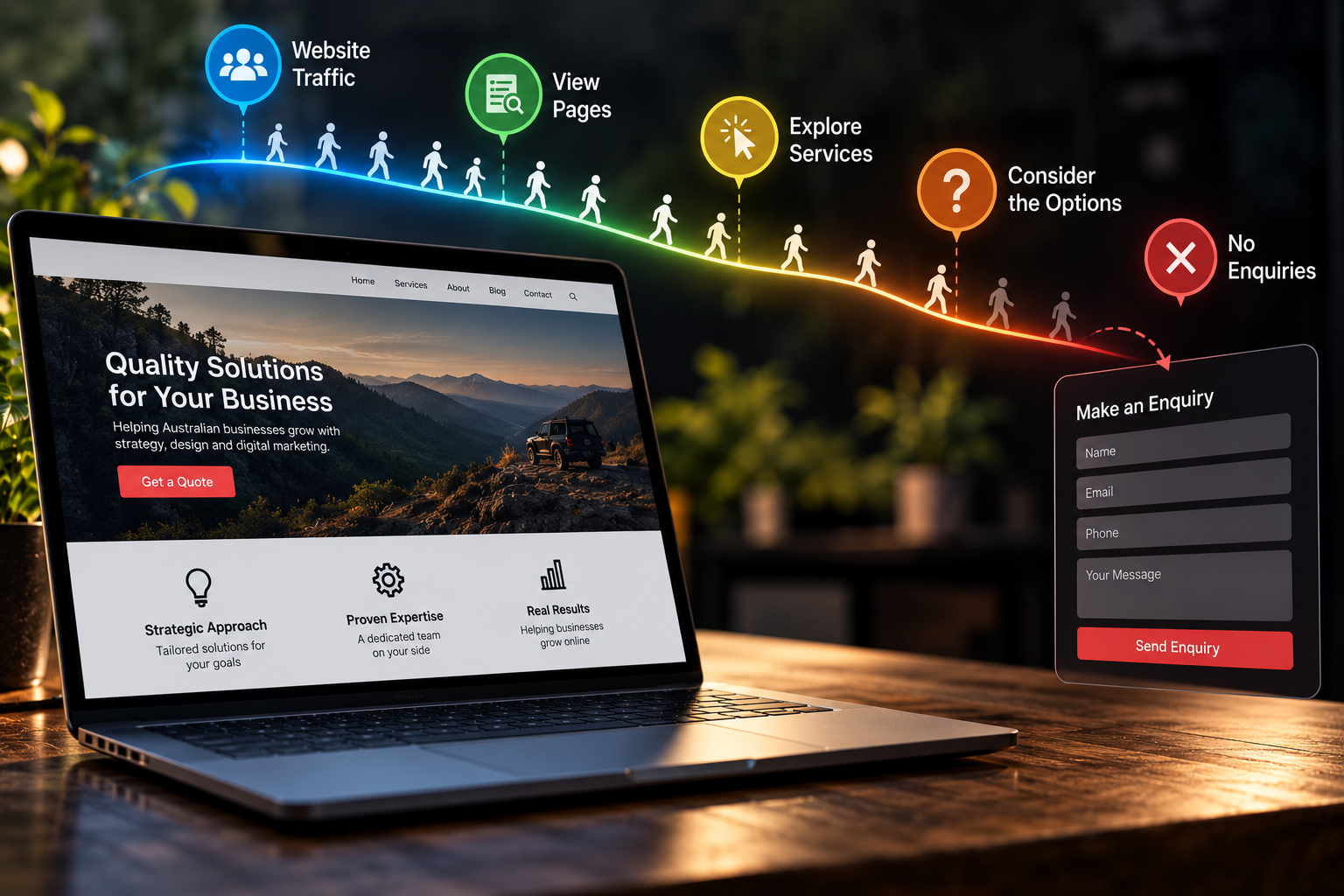
For more on this, read our guide to why your website is getting traffic but not enquiries.
Why Contact Form Problems Can Affect Your Business
Imagine running a Google Ads campaign that sends potential customers to your website.
People click your advertisement, read your services and complete the enquiry form.
Your analytics may show traffic and successful page interactions.
But if the notification emails aren’t arriving, your team may never know those enquiries were submitted.
You could mistakenly conclude that your advertising campaign isn’t generating useful leads.
Or you might increase your advertising budget when the real issue is a technical problem with the website.
The same problem can affect enquiries arriving through SEO, social media, referrals and direct visits.
This is why website maintenance isn’t only about keeping plugins updated or making sure pages load correctly.
It’s also about checking that the website continues to perform the business functions it was built to support.
A contact form is one of those functions.
Frequently Asked Questions
Why does Contact Form 7 say the message was sent but I don’t receive an email?
A successful submission message does not guarantee final email delivery. The notification may have been accepted for sending but subsequently rejected or filtered. Check your Mail settings, sender address, email logs, SMTP configuration and recipient spam filters.
Do I need an SMTP plugin for WordPress contact forms?
Not every WordPress website requires an SMTP plugin. However, authenticated SMTP or a supported email API can be a more reliable option than relying on an incorrectly configured hosting server’s default mail system.
Is WP Mail SMTP free?
WP Mail SMTP offers a free version, although available mailers and features vary by version. Some email providers also have separate usage charges or sending limits.
Can incorrect DNS settings stop WordPress emails?
Yes. Incorrect SPF, DKIM or DMARC configuration can contribute to authentication failures, spam filtering and rejected messages. Your DNS records should match the email service actually sending your website’s notifications.
Can I use Gmail as my WordPress contact form sender?
You can use a properly authorised Gmail or Google Workspace sending configuration where supported by your email plugin and provider. However, simply entering an arbitrary Gmail address in a form’s From field does not authorise your website to send messages on behalf of that address.
Why are WordPress emails going to spam?
Possible causes include email authentication problems, poor sender reputation, suspicious message content, receiving-provider filtering or an improperly configured sending service. Check authentication results and delivery logs to identify the cause.
Will changing my contact form plugin fix the email problem?
Not necessarily. If the problem is related to WordPress email delivery, hosting or DNS authentication, switching form plugins may leave the underlying issue unresolved.
How often should I test my website contact form?
For a business that relies on website enquiries, regular testing is sensible. Test after major website updates, hosting changes, email configuration changes and any modifications to the contact form.
Final Thoughts: A Working Contact Form Should Deliver More Than a Success Message
A WordPress contact form can look perfectly functional while failing at the most important part of the process: getting a customer’s enquiry to the right person.
The issue might be a notification setting, an incorrect sender address, a hosting limitation, missing email authentication, spam filtering or a plugin conflict.
The best approach is to identify where the process is failing and fix the underlying cause.
Start by testing the form, checking its notification settings and confirming that WordPress is using an appropriately configured email delivery service.
Then review your domain authentication and receiving mailbox settings.
Most importantly, don’t consider the problem resolved until you’ve completed a real test submission and confirmed that the notification arrives.
Need Help Fixing Your WordPress Website?
At Big Boot Media, we understand that a business website needs to do more than look professional. It should work reliably, support your marketing activities and make it easy for potential customers to get in touch.
Whether you’re dealing with contact form problems, website errors, performance issues or an outdated WordPress setup, identifying and resolving technical problems is an important part of keeping your website working for your business.
Learn more about our website design and development services or visit Big Boot Media to discuss your website requirements.